



Email with Microsoft 365
Email with Microsoft 365
Microsoft has disabled basic authentication for SMTP and IMAP on Microsoft 365. A mailbox password in an Email Account will not work — mail must authenticate with OAuth 2.0, which Frappe drives through a Connected App.
This page covers the whole path: app registration in Entra ID, the Connected App, the Email Account, and the authorisation handshake. See Email Account & Inbox for the general email model.
Before you start
- Entra ID (Azure AD) access that can register an app and grant admin consent
- The mailbox's real UPN — sometimes different from the address you send as
- SMTP AUTH enabled on that mailbox (off by default in many tenants)
- Your site reachable over HTTPS on a stable domain, for the redirect URI
1. Register the application
Entra admin centre → App registrations → New registration. Name it after whatever will use it, single tenant, and leave the redirect URI empty — it depends on a name that doesn't exist yet (step 5).
From Overview, copy the Application (client) ID and Directory (tenant) ID.
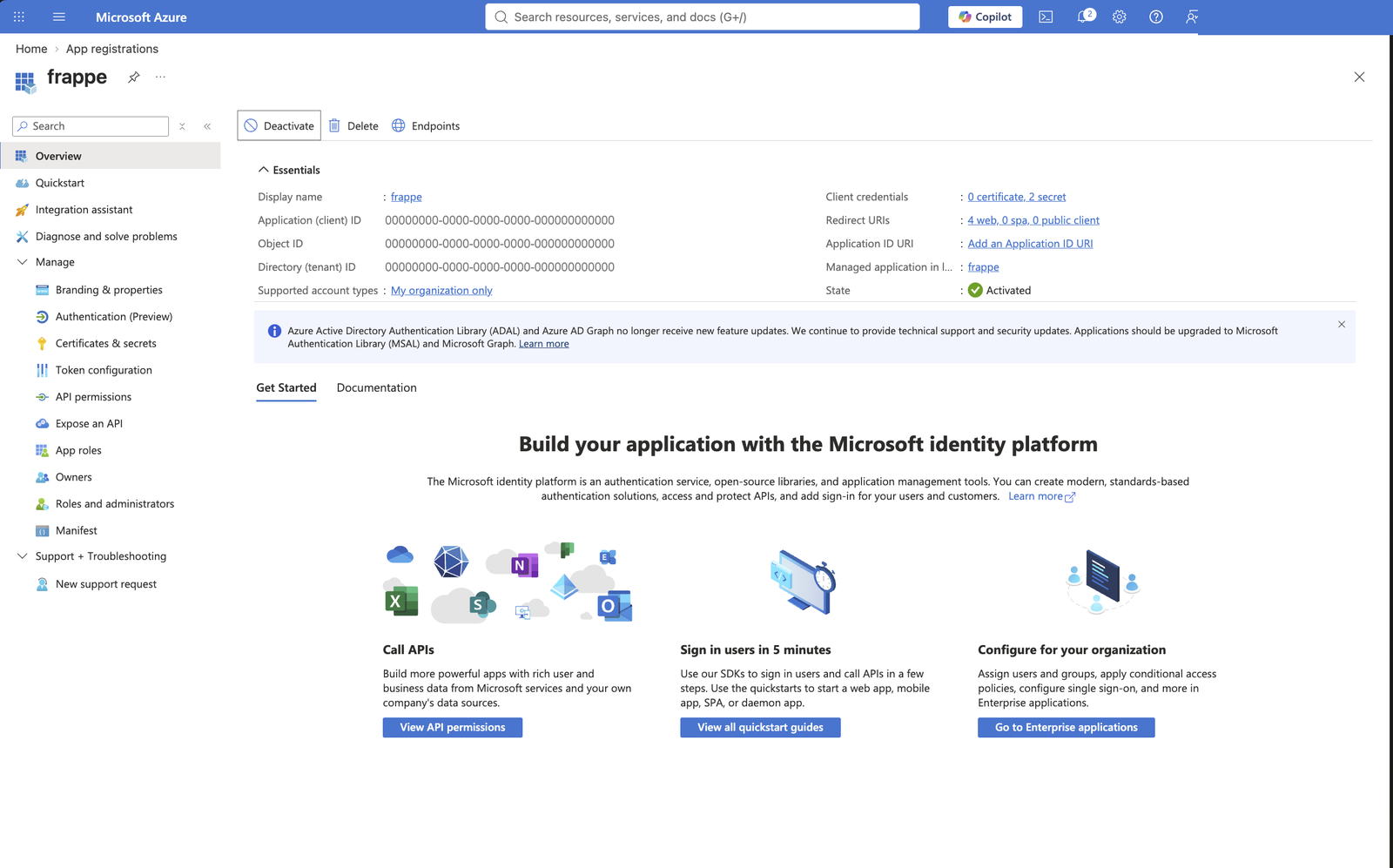
2. Create a client secret
Certificates & secrets → New client secret. Copy the Value immediately — it is shown once and never again.
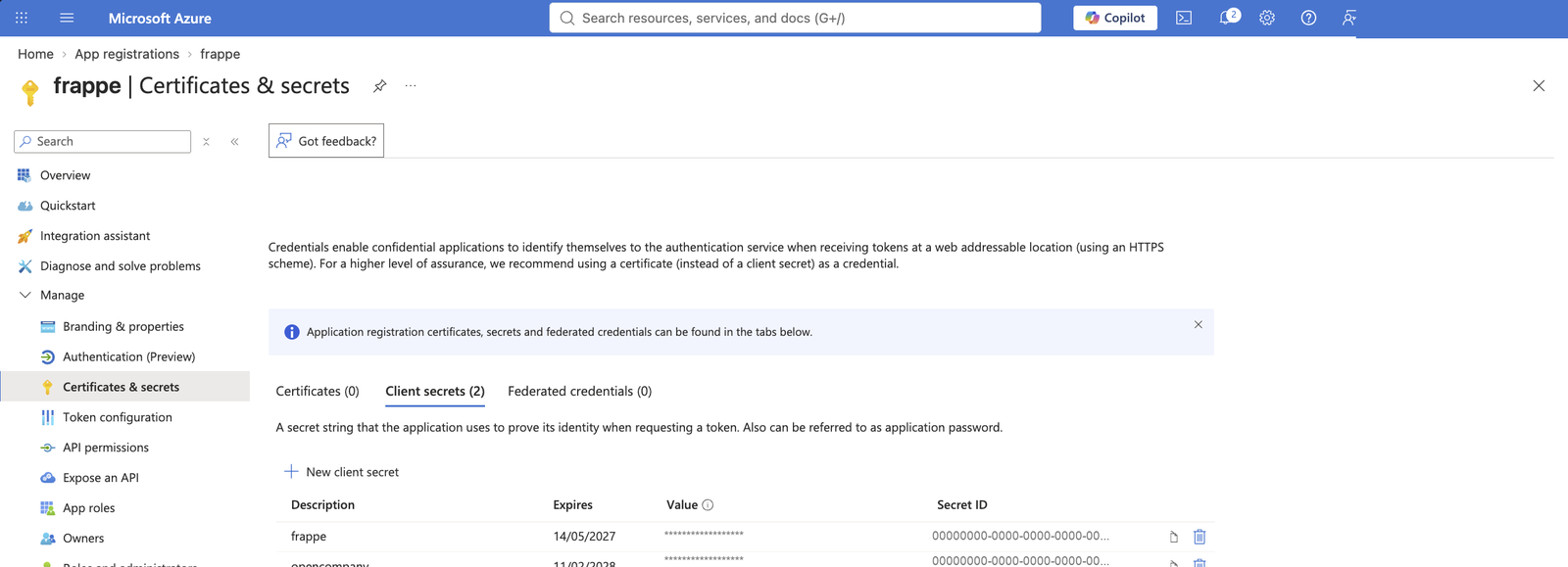
One registration can hold several secrets, and a secret cannot be read back once you leave the page — so give each a description naming what uses it, and note its expiry. Nothing warns you when one lapses.
3. Grant the mail permissions
API permissions → Add a permission → Microsoft Graph → Delegated permissions:
| Permission | Needed for |
|---|---|
SMTP.Send |
Sending |
IMAP.AccessAsUser.All |
Receiving |
Then Grant admin consent for the tenant. Without consent, the authorisation in step 8 fails.
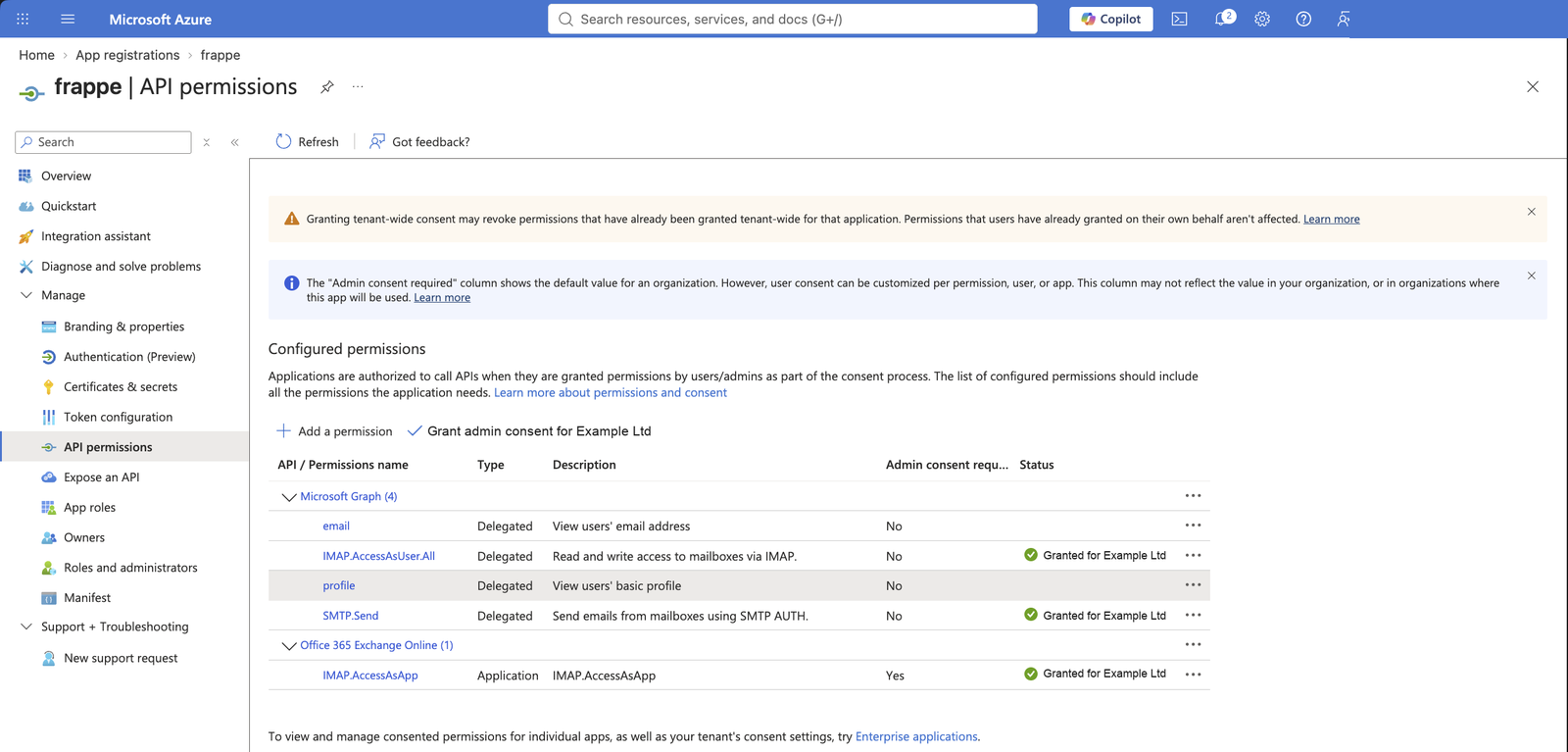
The list may also show Application permissions such as IMAP.AccessAsApp. Those belong to the service-principal flow and are not what a normal Email Account uses — a delegated token is what authenticates the SMTP session.
4. Create the Connected App
Connected App → New:
| Field | Value |
|---|---|
| Provider Name | a label, e.g. M365 |
| Client ID | Application (client) ID from step 1 |
| Client Secret | the secret Value from step 2 |
| Authorization URI | https://login.microsoftonline.com/<tenant-id>/oauth2/v2.0/authorize |
| Token URI | https://login.microsoftonline.com/<tenant-id>/oauth2/v2.0/token |
| Scopes | https://outlook.office365.com/.default, offline_access |
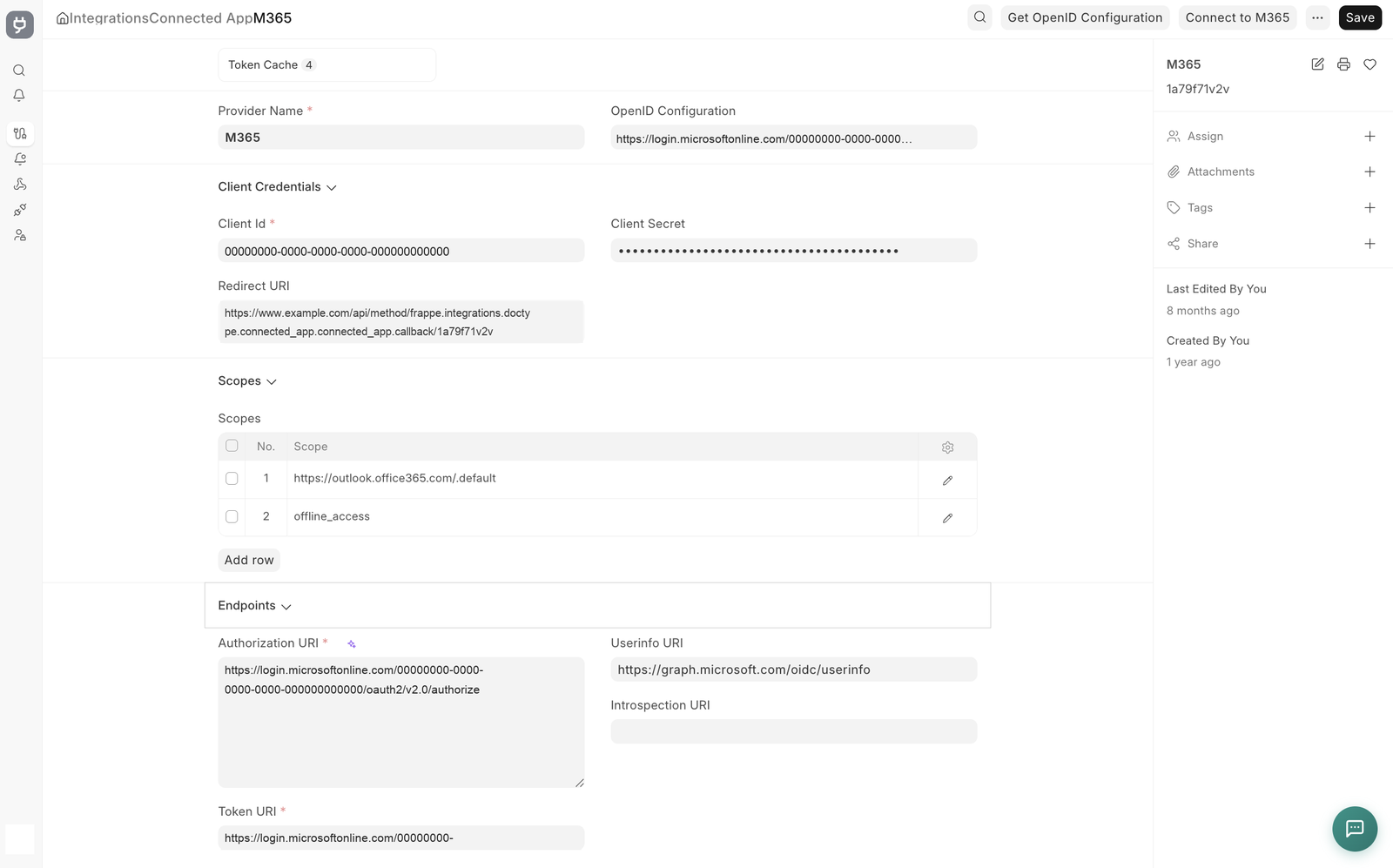
Use the Microsoft v2.0 endpoints. .default asks for everything already consented on the registration, which saves re-listing each scope here; naming SMTP.Send and IMAP.AccessAsUser.All explicitly works too. offline_access is what gets you a refresh token — without it the connection dies after an hour.
Provider Name is only a label. The document name — shown under the title in the sidebar, a short hash unless you renamed it — is what step 5 depends on.
5. Whitelist the redirect URI
Save the Connected App and read the Redirect URI field back. Frappe appends the document name to the callback path:
https://<site>/api/method/frappe.integrations.doctype.connected_app.connected_app.callback/<document-name>
Whitelist that exact URI in Azure under Authentication → Add a platform → Web.
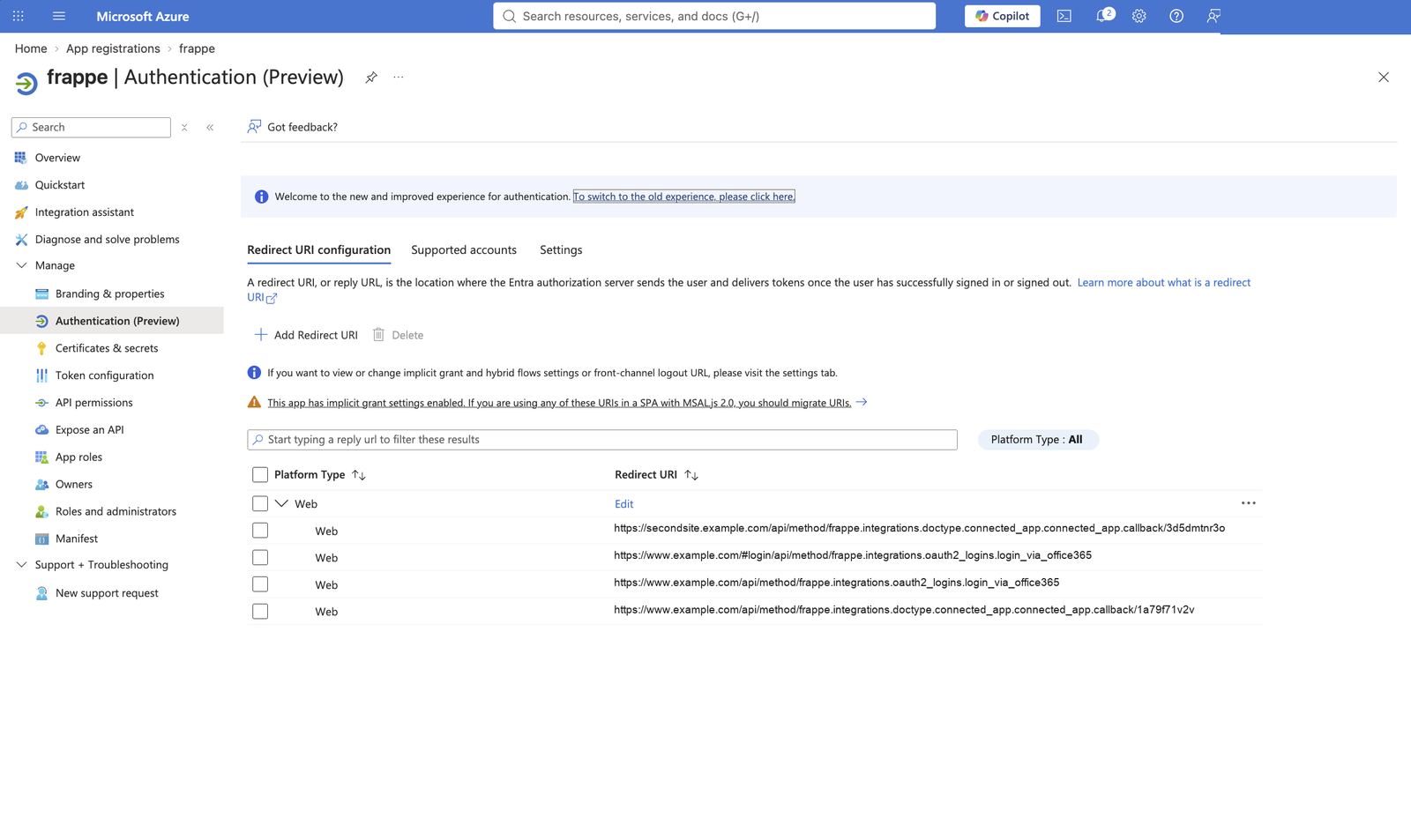
The bare .../callback without the trailing name is the most common reason a connect fails. One registration can serve several sites — each Connected App on each site contributes its own callback, as above.
If you rename a Connected App, re-save it so validate() recomputes the URI, then whitelist the new one.
6. Create the Email Account
Email Account → New:
| Field | Value |
|---|---|
| Email Address | the address you send as |
| Method | OAuth |
| Connected App | the document from step 4 |
| Connected User | the desk user who will authorise |
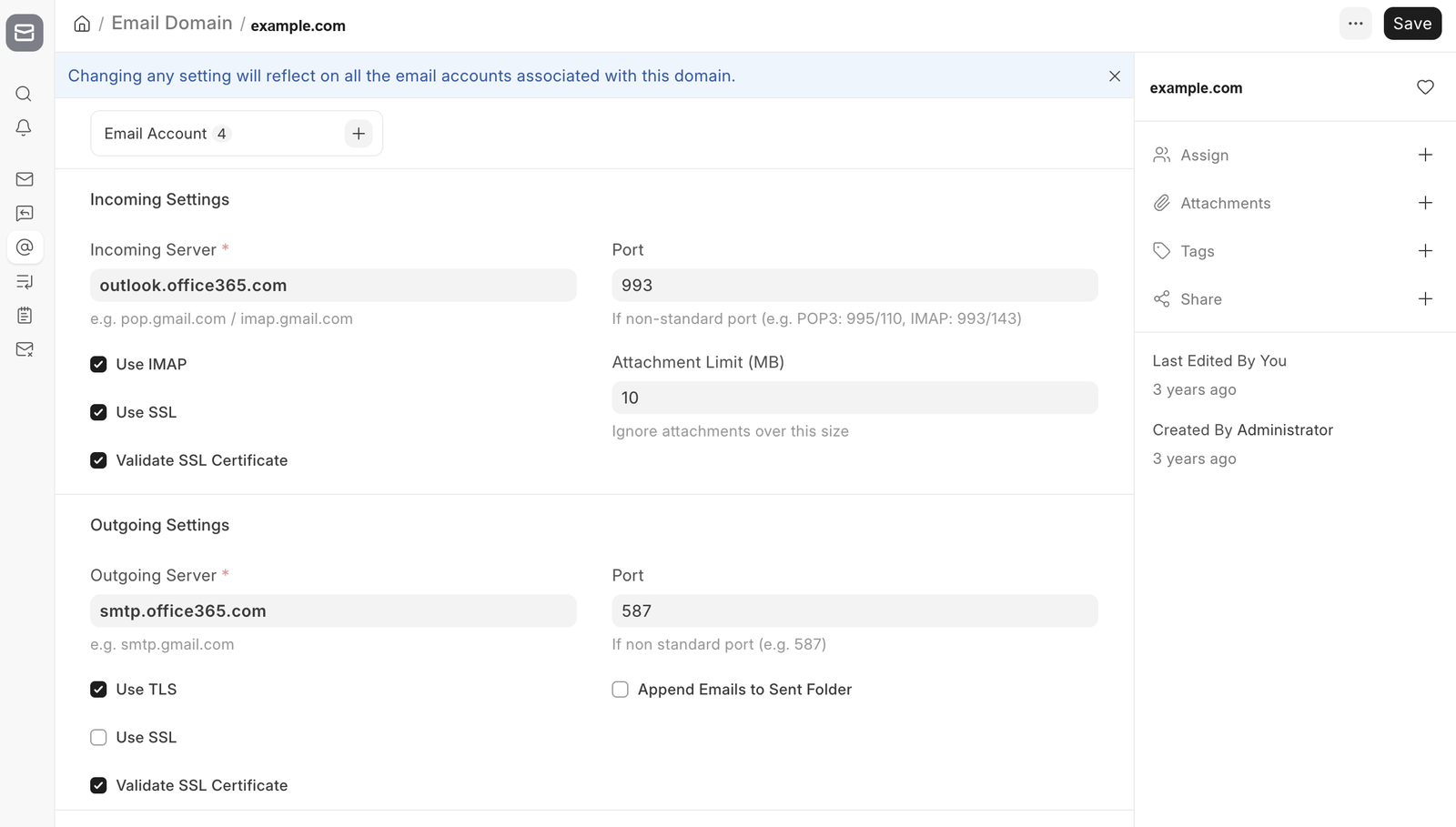
| Outgoing Server | smtp.office365.com, port 587, TLS |
| Incoming Server | outlook.office365.com, port 993, SSL |
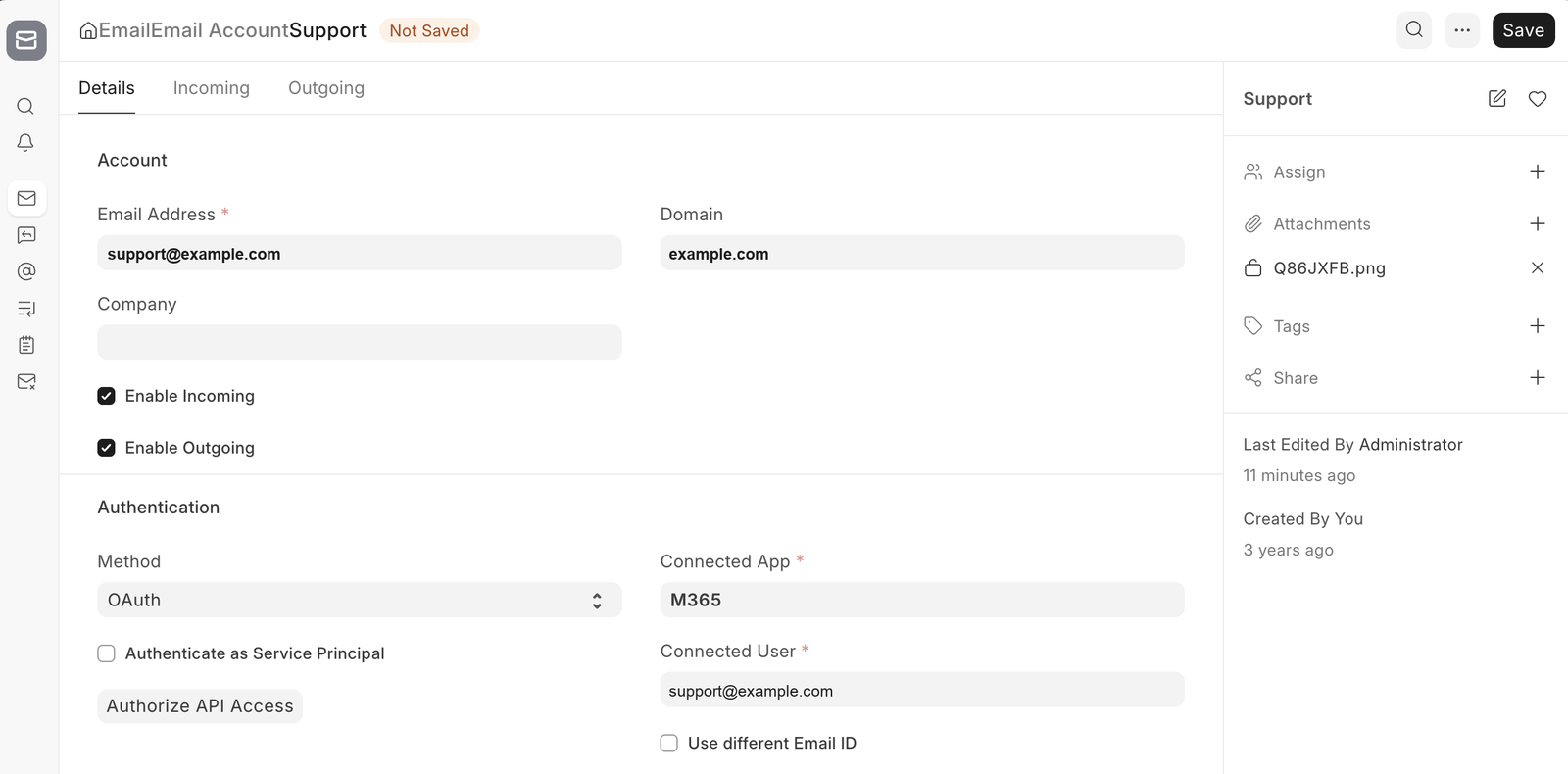
Connected App and Connected User only appear once Method is OAuth.
If the mailbox UPN differs from the sending address — you send as info@company.com but the mailbox is really info@company.onmicrosoft.com — tick Use different Email ID and put the UPN in Alternative Email ID. XOAUTH2 authenticates the token identity, not the alias. Get this wrong and you see a 535 failure with a token that is otherwise perfectly valid.
7. Share the settings across mailboxes
For more than one mailbox on the same tenant, put the servers and ports in an Email Domain once and point every Email Account at it, instead of repeating them.
8. Authorise
Click Authorize API Access on the Email Account (or Connect to <provider> on the Connected App). Sign in as the mailbox and accept the consent screen. That creates a Token Cache named <connected-app>-<connected-user> — the record the SMTP session actually reads.
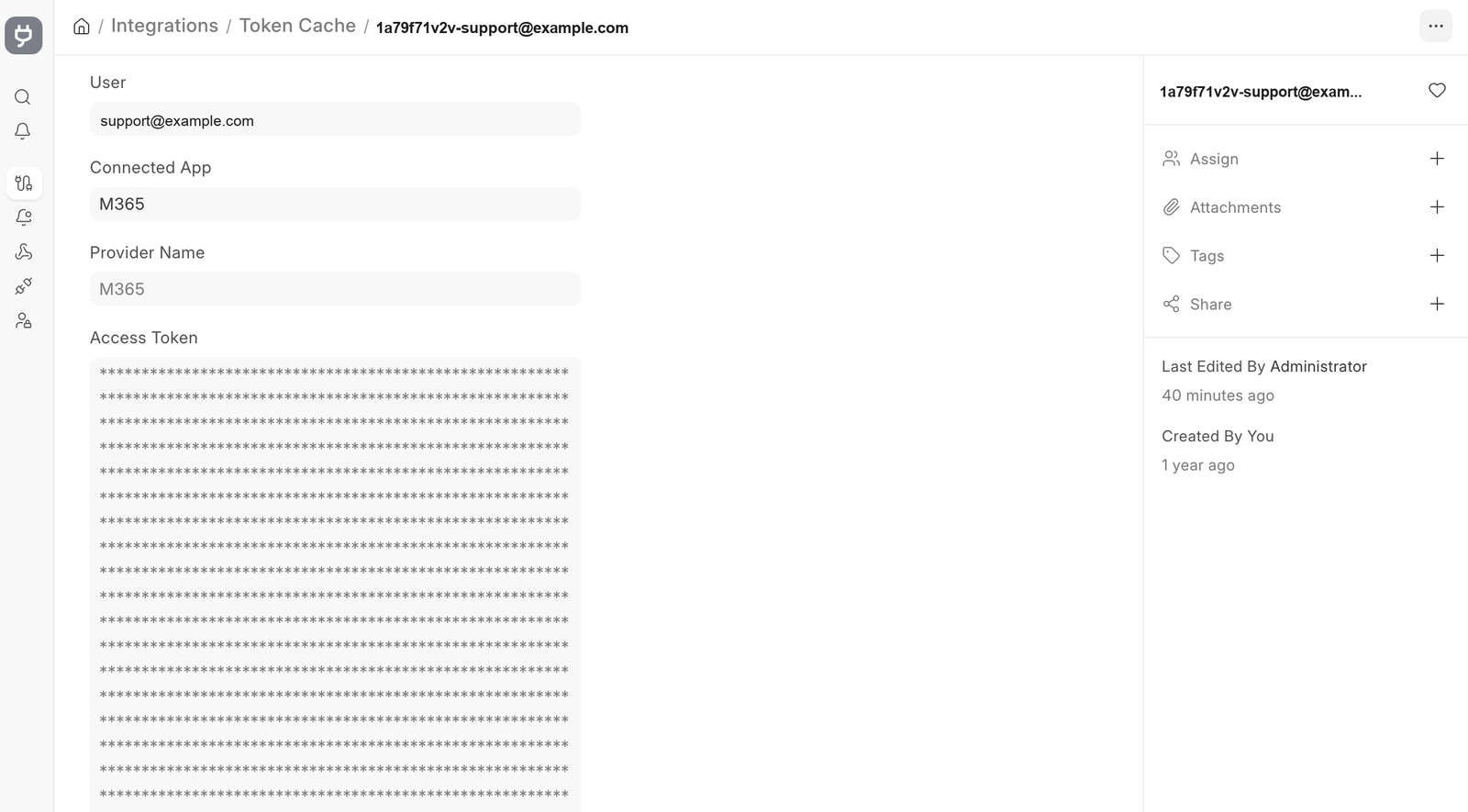
This step needs a browser and cannot be scripted. The signed-in user must match Connected User, or the session looks for a token cache that does not exist. Each user authorises separately, so a shared mailbox used by several people gets one cache each.
9. Verify
Send a test email from the account and confirm its Email Queue entry reaches Sent. A failure stays in the queue with the error against it — start from the table below.
Troubleshooting
| Symptom | Cause | Fix |
|---|---|---|
535 5.7.3 Authentication unsuccessful with a valid token |
Logging in as the alias instead of the mailbox UPN | Use different Email ID + Alternative Email ID (step 6) |
AADSTS50011 redirect URI mismatch |
Whitelisted URI missing the Connected App's document name | Whitelist .../callback/<document-name> (step 5) |
AADSTS65001 consent required |
Admin consent not granted | Grant admin consent on the delegated permissions (step 3) |
invalid_client |
Client secret expired or mistyped | Issue a new secret in Azure, paste it in, save |
SmtpClientAuthentication is disabled |
SMTP AUTH off for that mailbox | Enable SMTP AUTH per-mailbox in Exchange |
| Authorises fine but sending fails | Connected User does not match the user who authorised | Correct Connected User, authorise again |
| Worked for weeks, then everything fails at once | Client secret lapsed | See below |
Secret renewal
Entra client secrets expire — 24 months at most. Refresh tokens renew silently while the secret is valid, so nothing breaks until it lapses, and then every mailbox on that registration fails together.
You cannot read back which secret a Connected App holds; it is encrypted, and masked in the desk. So at renewal time don't try to identify the one in use — create a fresh secret, paste it into the Connected App, and save. Put the new expiry date in a calendar reminder.